This article will explains about how to enable joomla caching.

Enable Joomla Caching
If cache is not enabled, every time your visitors load one of your pages, Joomla has to do few things - fetch the content from its database, load all the plugins, components and modules, you have installed, load your template file and combine all that into a single page. Needless to say this process takes time. This is where the internal Joomla caching system comes to help. When you enable the cache, the first time someone loads your page, the result from the above mentioned actions is stored. Then, all the following visitors will directly get the stored version of that page as if it was a simple, plain HTML file which is much, much lighter and loads faster. This is why caching is one of the most important things to enable in order to have a fast Joomla site.
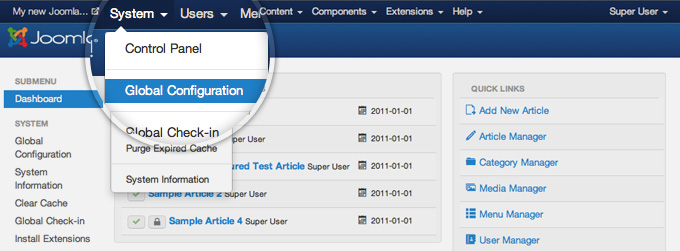
To enable the Joomla caching, first go to System -> Global Configuration.
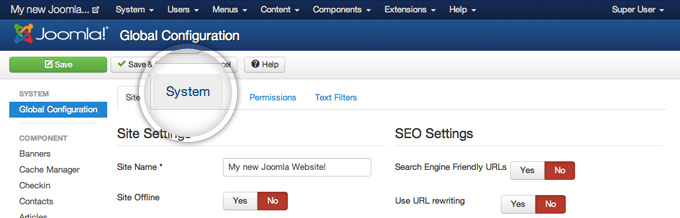
Next, you need to click on the System tab to get to the caching settings.
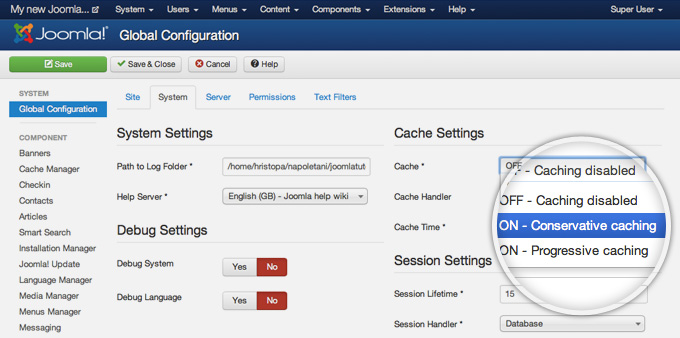
On the right part of this page you will find the Cache Settings. Find the Cache label and click on the drop-down next to it. From the list, please select the ON - Conservative caching option. The other available option - Progressive Caching works a bit different - it stores cached version of your site per each one of your visitors. It is useful in some particular cases and we don't recommend you to use it unless you're absolutely sure you need such caching enabled.
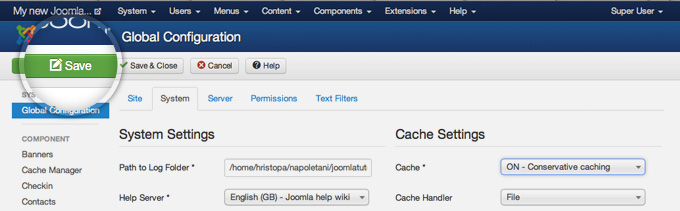
Once you set the caching to Conservative Caching, click on the green Save button at top of your page.
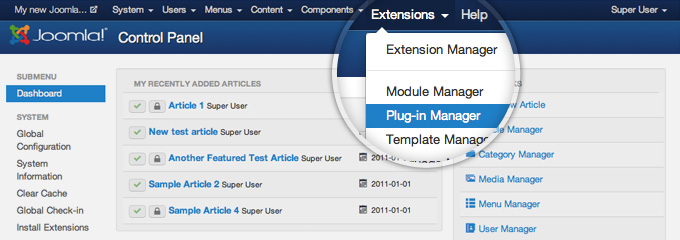
There is one final step that you need to make before the Joomla caching system actually starts working - to enable the System - Cache core Joomla 3 plugin. To do this go to Extensions -> Plugin Manager.
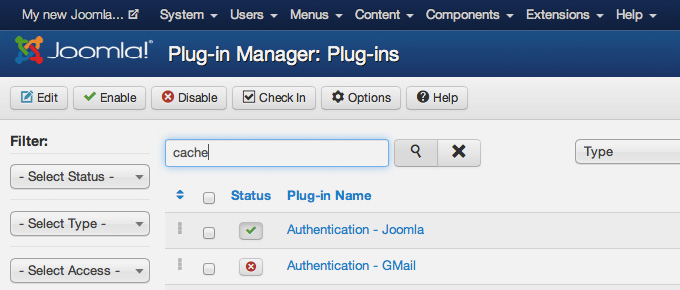
Here you will see a big list of all the plugins, currently installed in your Joomla application. The easiest way to locate the caching plugin is to use the search field. Just type in cache and press the magnifying glass button next to the search field.
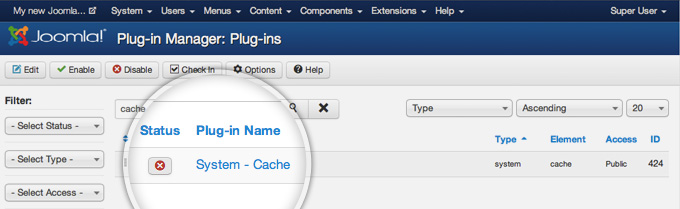
Once you do that, you will see the System - Cache plugin and a red cross button next to it indicating that the plugin is disabled. To change its status to enabled press on the red button.
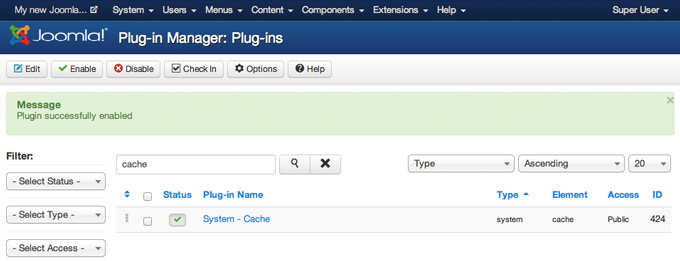
Finally, the status button next to the caching plugin will turn green and you'll see a message, indicating that the plugin has been enabled successfully.
That's it! Your Joomla caching system is now enabled and functional!
Best Recommended Joomla Hosting
ASPHostPortal.com
ASPHostPortal.com is the leading provider of Windows hosting and affordable Joomla Hosting. Joomla 3.4 Hosting from ASPHostPortal.com provides a safe, reliable and performance-driven foundation for your Joomla website. Joomla is the perfect Content Management System for managing and developing your website with one of ASPHostPortal’s Hosting plans. ASPHostPortal has ability to support the latest Microsoft and ASP.NET technology, such as: WebMatrix, WebDeploy, Visual Studio 2015, .NET 5/ASP.NET 4.5.2, ASP.NET MVC 6.0/5.2, Silverlight 6 and Visual Studio Lightswitch, ASPHostPortal guarantees the highest quality product, top security, and unshakeable reliability, carefully chose high-quality servers, networking, and infrastructure equipment to ensure the utmost reliability.