
February 28, 2014 07:06 by
 ben
ben
Great! Joomla 3.2.2 Stable has been released. This has been a great effort with contributions from over 30 volunteers. A heartfelt thanks goes out to all contributors.
This release is a bug fix release, but we recommend that users perform a Joomla upgrade in order to take advantage of the fixes that have been released.

A Joomla upgrade can be performed directly in the Joomla administrative backend.
One of the best new features in the latest version of Joomla is Content History.
Enable within Article Manager
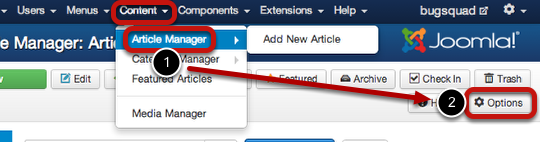
First step, go to "Content" -> "Article Manager" ->"Options"
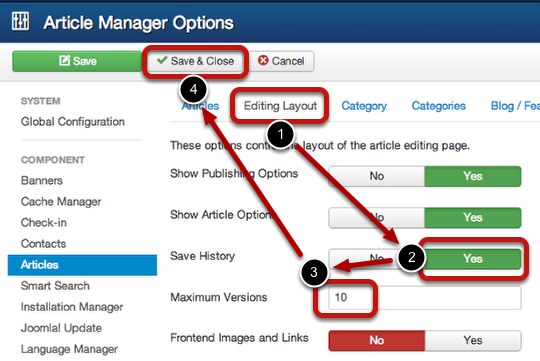
After that, go to "Editing Layout" tab;
In "Save History" coloum, choose "Yes";
Adjust the "Maximum Versions" setting to your preference. This sets the number of latest revisions to save for the article.
And click "Save & Close".
Test the Feature
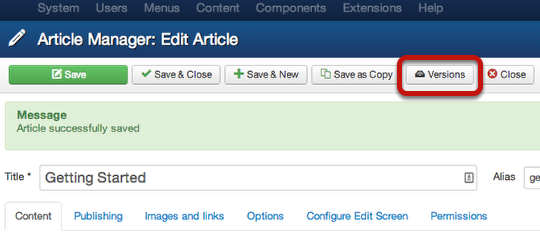
For make test feature, enter an article, make a few revisions, then click "Save". Make a few more revisions, then click "Save" again. Finally, click on the "Versions" button to see the saved changes.
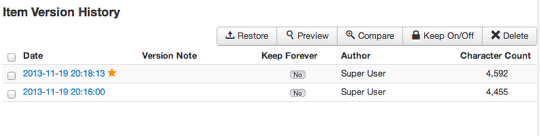
In the above screenshot everything's working. I can now preview a revision, restore it, compare it to another, keep it on, and delete it.Remember, the function of Keep On/Forever option is to store that version indefinitely. We using an example in this tutorial because it is an easy way to explain this feature.
Do you know about the function of the Maximum Versions setting? If you set that to 5, then 5 versions of that article are saved. On the 6th one, the 1st version gets deleted so that there are still 5 versions left total. What if you want to keep the first one or any other article? That's where the Keep On setting comes into play. If you enable it for that article version, it won't automatically get deleted from the list, but rather will remain there untouched. It's basically a "lock" feature that prevents deletion.
13397b48-8e50-4d69-896b-34fa5a3e33fd|0|.0
February 21, 2014 11:07 by
ben
Joomla is one of the widly used software that allows you to create a professional-looking and user friendly website in a verry short time. And in Joomla Web development, PSD to Joomla conversion is an inevitable process.

Any PSD file can be converted into a Joomla Template by following these three easy steps. Simply go through the following illustrated steps for the PSD to Joomla conversion :
- Slicing the PSD:
First, you must slice the PSD file into multiple layers viz. header, footer, content or navigation part. Slicing should be done with a keen eye because it creates the base for your website. You should also work on the parts which you don’t want to duplicate using the CSS such as the images, logo and the buttons. So slice out all your images and save them in a separate folder called images.
- Conversion and Styling:
- HTML Conversion : Now next thing in conversion is the coding of image files in a proper semantic form. It should be kept in mind that your conversion is well structured with a table-less Search Engine friendly semantics.
- CSS Styling : In another step you have to start developing your Cascading Style Sheet popularly called as CSS. While designing a CSS, you should check whether it is meeting all the requirements of website.
- JavaScript : In this part of conversion implement all your JavaScript into the website. Make your website more attractive and add dynamic interaction with the use of proper JavaScript.
- Joomla Integration:
Here, you need to be verry consious in order to avoid any inconsistency in the data. It would be better to hire a professional Joomla designer who has all the required expertise to carry out this conversion in an efficient manner. So, now, create a relevant folder and directories required for your website. Create a Template_thumbnail.png for displaying template image in admin panel and a template_details.xml which will be serving as the main file that Joomla reads to install a template. Finally make a zip file of the complete folder and install it using the Extension Manager in your Joomla Content Management System.
44569636-c911-4ed8-b031-4c200bd95497|0|.0
November 15, 2013 06:47 by
benNow that we have added the CSS and JS files to the Joomla 3.0 template that we are creating, we will now add the Necessary bootstrap files.
While the bootstrap Necessary files can be downloaded from the official site, Joomla 3.0 actually includes the Necessary bootstrap css and javascript files as well. As a template developer, this will the make incorporating these files much Easier.

Some bootstrap loaded with <jdoc:include type="head" />
When we added <jdoc:include type="head" /> within our template's head tag, Joomla automatically added a few JavaScript and CSS files. In the list of files below that Joomla added, you will notice that we've highlighted the bootstrap files that it included:

According to the official bootstrap documentation, we need to include the following files:
1. bootstrap.css (or bootstrap.min.css)
2. bootstrap.js (or bootstrap.min.js)
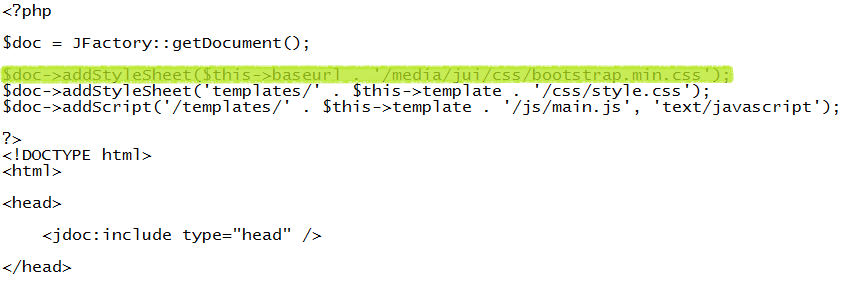
As <jdoc:include type="head" /> already included bootstrap.min.js for us, we only need to include bootstrap.min.css. To do this, we will update our template's index.php on our Joomla hosting server to include this file. You can see the code we added below that includes bootstrap.min.css, which we've highlighted:
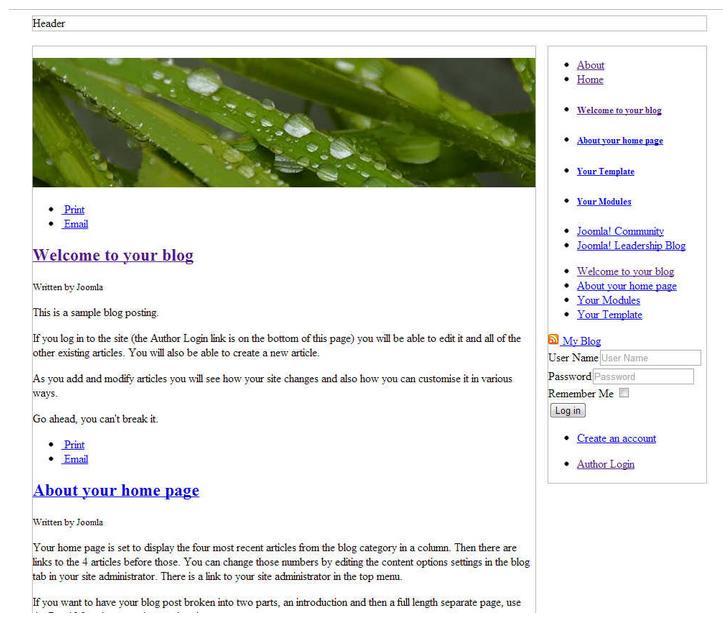
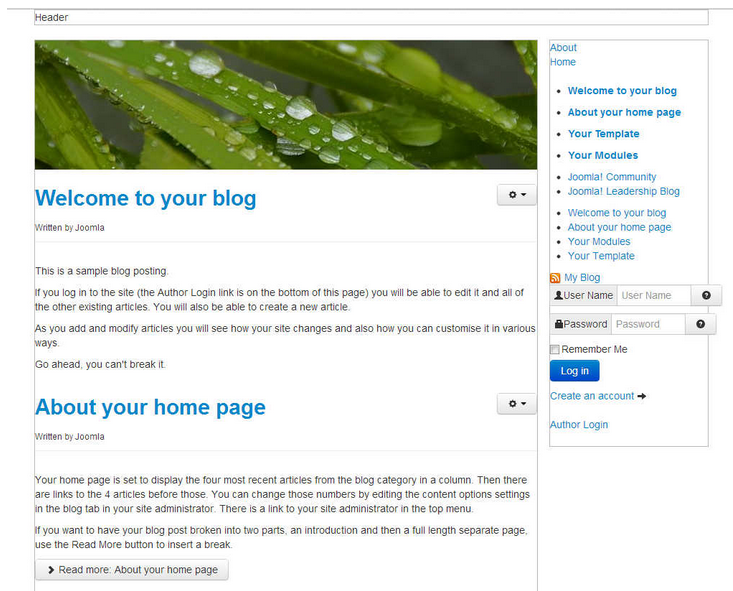
After editing our template's index.php on the server and saving the changes, our template is taking a little more form. You can see in the screenshots below how our template looks with and without this css file.
e3993468-1fbd-4546-a669-819444531977|0|.0
October 22, 2013 07:22 by
benEven if you have a relatively small website, it is likely that you eventually have to deal with hackers. One of the most common methods of hacking is the brute force attack – here hackers will cycle through numbers and letters to try to crack your password. It has happened to Joomla users in recent memory, so it is important to be prepared as much as possible.
The reason that these brute force attacks were successful encompasses a number of different factors. First, you have unlimited login attempts with the Joomla platform. This means that brute force hackers can continue to try until they gain access or are detected. While there is not much the average user can do about this, you can use different tactics to make your site more secure against these hackers.

1. Don’t use the admin username
Many times, the most common usernames are targeted such as admin, webmaster, administrator, test, etc. These all are very common usernames and that’s why, it makes sense to avoid using them. Don’t worry, from the backend, you can select a different name that’s publicly visible. This means that your username can be “amazingme” and you can choose a different name to be displayed on the front-end.
2. Use a strong password
Use a strong password and avoid common passwords such as fghj, 2221, 12345, your name, etc. The brute force attack targets all the common passwords first, and that’s why you should use a strong password that is a combination of uppercase and lowercase letters, numbers and special characters like #@*^. For example; a strong password would be something like h@LL003v3ryB0dy^^#. Also, never use the same password at two different places.
3. Limit login attempts
It is highly recommended that you limit login attempts. This can be done by using a security plugin like Better Joomla Security, or by using Limit Login Attempts plugin.
4. Update core and add-ons to improve Joomla security
Since the most common successful attacks are due to known vulnerabilities in outdated Joomla versions and add-ons, one of the most important tasks for anyone responsible for Joomla security is to ensure that all the software remains up to date.
Thus, one of the most important features that has been added to Joomla is the new Joomla Update Manager which can be used to easily update many extensions, as well as the Joomla Update component to update Joomla itself.
5. Backup often
Take regular backup of your complete Joomla site. Some people don’t give importance to backup, and unfortunately, they realize the value of backup only after a disaster strikes. Also don’t rely much when your host says that they regularly perform backup, because if they don’t, then it will create more problems.
2c37da97-c074-458e-895e-ae76469bb74f|0|.0