Joomla Hosting BLOG

Blog about Joomla, Technologies and Hosting Service

Joomla Hosting - ASPHostPortal.com :: Optimize Joomla Security

clock September 28, 2016 19:49 by author Armend

Optimize Joomla Security

Joomla! is a great CMS that is used worldwide. For this reason, hackers often try to find a way to hack a Joomla! website. Here are 7 tips to optimize your Joomla! security, preventing your Joomla! website getting hacked.
Always remember to make a regular backup of your website and database. If you still get hacked, you can always get back to an older version of your website. Make sure you find out which extension caused the vulnerability and un-install it.


Change the default database prefix (jos_)

Most SQL injections that are written to hack a Joomla! website, try to retrieve data from the jos_users table. This way, they can retrieve the username and password from the super administrator of the website. Changing the default prefix into something random, will prevent (most / all) SQL injections.
You can set the database prefix when installing your Joomla! website. If you've already installed Joomla! and want to change your prefix, do the following:

  •     Log on to your Joomla! back-end.
  •     Go to your global configuration and search for the database
  •     Change your database prefix (Example: fdasqw_) and press Save.
  •     Go to phpMyAdmin to access your database.
  •     Go to export, leave all default values and press Start. Exporting the database can take a while.
  •     When done, select all code and copy it to notepad (or any other text editor)
  •     In phpMyAdmin, select all tables and delete them
  •     In notepad, do a Search & replace (Ctrl + H). Set the searchterm to jos_ and change it into your new prefix (Example: fdasqw_). Press "Replace all".
  •     Select everything in your notepad file and copy it. In phpMyAdmin, go to SQL, paste the queries and press Start.

Remove version number / name of extensions

Most vulnerabilities only occur in a specific release of a specific extension. Showing MyExtension version 2.14 is a really bad thing. You can modify this message to only the name of the extension by doing the following:

  •     Retrieve all files of the extension from your server.
  •     Open up Dreamweaver.
  •     Load any file from the extension that you just downloaded to your local machine.
  •     Use the Search function and set the search to Search through specified folder. Navigate to the folder where you downloaded the exploit to.
  •     Set the search term to "MyExtension version 2.14" and press OK.
  •     When found the correct file, remove the version number.
  •     Upload the changed file to your server and check if the changes are made.

Use a SEF component

Most hackers use the Google inurl: command to search for a vulnerable exploit. Use Artio, SH404SEF or another SEF component to re-write your URL's and prevent hackers from finding the exploits.
Additionally, you'll get a higher rank in Google when using search engine friendly URL's.

Keep Joomla! and extensions up to date

This one is pretty obvious. Always check for the latest versions of Joomla! and the extensions you're using. Many vulnerabilities are resolved most of the times in later versions.

Use the correct CHMOD for each folder and file

Setting files or folders to a CHMOD of 777 or 707 is only necessary when a script needs to write to that file or directory. All other files should have the following configuration:

  •     PHP files: 644
  •     Config files: 666
  •     Other folders: 755

Delete leftover files

When you installed an extension that you didn't like, don't set the extension to unbublished. If you do, the vulnerable files will still be on your website. So simply use the un-install function to totally get rid of the extension.

Change your .htaccess file

Add the following lines to your .htaccess file to block out some common exploits.

########## Begin - Rewrite rules to block out some common exploits
#
# Block out any script trying to set a mosConfig value through the URL
RewriteCond %{QUERY_STRING} mosConfig_[a-zA-Z_]{1,21}(=|%3D) [OR]
# Block out any script trying to base64_encode crap to send via URL
RewriteCond %{QUERY_STRING} base64_encode.*(.*) [OR]
# Block out any script that includes a < script> tag in URL
RewriteCond %{QUERY_STRING} (<|%3C).*script.*(>|%3E) [NC,OR]
# Block out any script trying to set a PHP GLOBALS variable via URL
RewriteCond %{QUERY_STRING} GLOBALS(=|[|%[0-9A-Z]{0,2}) [OR]
# Block out any script trying to modify a _REQUEST variable via URL
RewriteCond %{QUERY_STRING} _REQUEST(=|[|%[0-9A-Z]{0,2}) [OR]
# Block out any script that tries to set CONFIG_EXT (com_extcal2 issue)
RewriteCond %{QUERY_STRING} CONFIG_EXT([|%20|%5B).*= [NC,OR]
# Block out any script that tries to set sbp or sb_authorname via URL (simpleboard)
RewriteCond %{QUERY_STRING} sbp(=|%20|%3D) [OR]
RewriteCond %{QUERY_STRING} sb_authorname(=|%20|%3D)
# Send all blocked request to homepage with 403 Forbidden error!
RewriteRule ^(.*)$ index.php [F,L]
#
########## End - Rewrite rules to block out some common exploits

Best Joomla Hosting Recommendation

ASPHostPortal.com provides our customers with Plesk Panel, one of the most popular and stable control panels for Windows hosting, as free. You could also see the latest .NET framework, a crazy amount of functionality as well as Large disk space, bandwidth, MSSQL databases and more. All those give people the convenience to build up a powerful site in Windows server. We offer Joomla hosting starts from $5/month only. We also guarantee 30 days’ money back and guarantee 99.9% uptime. If you need a reliable affordable Joomla Hosting, we should be your best choice.

Save


Joomla Hosting - ASPHostPortal.com :: Steps to Upgrade Your Joomla Website

clock September 21, 2016 19:10 by author Armend

Steps to Upgrade Your Joomla Website

It is essential that you keep your Joomla website updated as it is vital to ensure website security. Now this might not be a problem if you’re looking to upgrade to a newer release of the same version that you use. However, the procedure involved in shifting from one version can be a slightly more complicated task.
Hat being said, it is still highly recommended that you do the same! So, here’s a step-wise tutorial on how to upgrade Joomla.Before you can begin, it’s good to know which version of Joomla you currently run. Joomla has two supported versions at the moment; one being Joomla 2.5, and the other is Joomla 3.

Both versions are still being reworked and debugged and you can get new security updates for them. And if you’re either any of the two versions, always check for minor update releases. If you want to upgrade to the latest release of the same version, you can easily do so with a one-click option of the Joomla admin.

Check For Updates

To upgrade your Joomla with a new release of the same version, you’ll have to access the admin area on “http://yourdomain.com/administrator”. After that’s done, Joomla will check for the latest versions of the software, automatically. And if a newer version is available for download, you’ll get a notification regarding the same


Install Updates

After clicking the link, you’ll be automatically redirected to the update page for Joomla. This is where you will get information like your current Joomla version as well as info about the latest version you will upgrade to, the URL for the update, as well as an installation tutorial.
It’s best to retain all the default settings and not make any changes to them. Once you’ve clicked the Install update button, the website will be upgraded to the latest version of Joomla in just a few minutes. You will then be taken a page that confirms your successful update!

Migrate to a New Version

A major problem with migrating to the latest version of Joomla is that templates, plugins and extensions you use might be incompatible with the latest version. Basically, it means that you’ll have your backed-up content available on the latest version, but will have to delete, alter or update your plugins before your site will be fully functional.
Also, as a long-standing release of the Joomla 3 version doesn’t exist yet, you will have no choice but to change to short-term settings on the server. You can complete this process by clicking the “Options” tab, which will provide you with a pop-up that contains the settings, Update Your Joomla Website that you need. The next step is to select a drop-down menu choose Customer Support. Save all your data and close the tab.


After you’ve shifted to a short-term update server, your software will automatically detect a fresh update. Just hit the Install update button, give Joomla a few minutes to complete the migration, and you’ll get a confirmation of migration from the admin area. It is advised to never close your browser while the migration is taking place.

Best Joomla Hosting Recommendation

ASPHostPortal.com provides our customers with Plesk Panel, one of the most popular and stable control panels for Windows hosting, as free. You could also see the latest .NET framework, a crazy amount of functionality as well as Large disk space, bandwidth, MSSQL databases and more. All those give people the convenience to build up a powerful site in Windows server. We offer Joomla hosting starts from $5/month only. We also guarantee 30 days’ money back and guarantee 99.9% uptime. If you need a reliable affordable Joomla Hosting, we should be your best choice.


Joomla Hosting - ASPHostPortal.com :: How To Upgrade Joomla 3.6

clock September 7, 2016 19:22 by author Armend

How to Upgrade Joomla 3.6

"Before updating, always take a backup and don’t forget to test it".

Update by using the Joomla! Update component

Preferably you update your Joomla! Installation by using the Joomla! Update component
If you don't know how to use the Joomla! update component, please see: Joomla! Update Component.

Update when you can´t use the Joomla! Update component

If you can’t update your Joomla! Installation using the Joomla! Update component because of hosting limitations or connection issues then you will need to follow these steps:

Method A

  • Go to Components → Joomla Update. Click the "Update url" link and save the update package to your computer.
  • Copy the update package (that you just downloaded) to the sites /tmp folder (note the path is set in the Joomla Global Configuration - make sure it's in the correct directory)

(N.B. this method only works with the update package that the Joomla! Update component discovers. It will not work for other update packages or the Joomla full package. It also requires an internet connection to the Joomla Update XML file).

  • Go to Components → Joomla Update. The Joomla! Update component will use the update package from your /tmp folder.

Method B

(If you don't have the ability to unpack the archive on the server, please see Method C)

  • Download the update package from https://www.joomla.org/download.html
  • Copy the update package to the root directory of your site and unpack it. Note that you need to tell the system to replace any existing files. For example, in ASPHostPortal.com, use the FTP File Manager to upload the update file and then use "Unarchive" to unpack it. Check the box "Overwrite existing files".
  • Log in to your Joomla! Administrator panel and go to Extensions → Manage → Database and select the Fix button on the top left.
  • Go within the manage section to Discover menu item in the left menu and click the Discover button. Select only the Joomla! CORE extensions shown in the list and click the Install button. (Note: do not select for installation the 3rd party extensions you may have installed).
  • In the main menu of your administrator panel, go to System → Clear Cache and if any rows are shown, select them and click the Delete button at the top left.

Method C

If you don't have the ability to unpack the archive on the server (method B), please use this method:

  • Download the update package from https://www.joomla.org/download.html
  • Extract the download package on your computer
  • Using your favorite FTP software, upload the folders and files at the root of the website or in the folder where your Joomla! installation is located. (NOTE: If you are using Filezilla, click on "Replace" for all, if you are using WinSCP, click on upload and then allow override for all. The FTP software will overwrite the existing files and add the new ones.)
  • Log in to your Joomla! Administrator panel and go to Extensions → Manage → Database and select the Fix button on the top left.
  • Go within the manage section to Discover menu item in the left menu and click the Discover button. Select only the Joomla! CORE extensions shown in the list and click the Install button. (Note: do not select for installation the 3rd party extensions you may have installed).
  • In the main menu of your administrator panel, go to System → Clear Cache and if any rows are shown, select them and click the Delete button at the top left.


Best Joomla Hosting Recommendation

ASPHostPortal.com provides our customers with Plesk Panel, one of the most popular and stable control panels for Windows hosting, as free. You could also see the latest .NET framework, a crazy amount of functionality as well as Large disk space, bandwidth, MSSQL databases and more. All those give people the convenience to build up a powerful site in Windows server. We offer Joomla hosting starts from $5/month only. We also guarantee 30 days’ money back and guarantee 99.9% uptime. If you need a reliable affordable Joomla Hosting, we should be your best choice.


Joomla Hosting - ASPHostPortal.com :: How To Disable Joomla Elements

clock August 31, 2016 19:45 by author Armend

In case you are utilizing Joomla CMS dependent web-site and hate overlapping visibility of Joomla components on the website property web page, then you definitely have found the appropriate write-up to receive rid off with this monsters trouble. However, Joomla parts plays a crucial function in improving the practical talents of a web-site, although the overt existence of these equipment can destroy the appears of your enticing website homepage.

Step: 1

Develop a new module and set the location as frontcomp:

You need to place below given codes into the index file of your Joomla template.

<?php if($this->countModules(‘frontcomp’)) : ?>
<jdoc:include type=”modul es” name=”frontcomp” style=”xhtml” />
<?php endif; ?>


Step: 2

Now Replace Below Code With Display Component:

<?php if(!$this->countModules(‘frontcomp’)) : ?>
<jdoc:include type=”message” />
<jdoc:include type=”component” />
<?php endif; ?>

Step:3

Creation of Custom Module

It is the third step of your process. Now, you need to create a new and customized HTML module, set the position of module as Frontcomp and select homepage only to display.
That’s it! You have done it fabulously, Now, you can visit your website and check the expected changes. If you did not find overlapping Joomla components at the home page of your website, then you have certainly did a great job.

Best Joomla Hosting

ASPHostPortal.com is the leading provider of Windows hosting and affordable Joomla Hosting. Joomla Hosting from ASPHostPortal.com provides a safe, reliable and performance-driven foundation for your Joomla website. Joomla is the perfect Content Management System for managing and developing your website with one of ASPHostPortal’s Hosting plans. ASPHostPortal has ability to support the latest Microsoft and ASP.NET technology, such as: WebMatrix, WebDeploy, Visual Studio 2015, .NET 5/ASP.NET 4.5.2, ASP.NET MVC 6.0/5.2, Silverlight 6 and Visual Studio Lightswitch, ASPHostPortal guarantees the highest quality product, top security, and unshakeable reliability, carefully chose high-quality servers, networking, and infrastructure equipment to ensure the utmost reliability. 


Joomla hosting - ASPHostPortal.com :: Tips to Enable Content History in Joomla

clock August 24, 2016 21:13 by author Armend

Joomla is one of the Opensource CMS is designed to be used dimulti scope . ranging from the simple to the complex , even up to the corporate level . Joomla is easy to pengintallan , sederhanda in managing and reliable.

Joomla CMS is an award for the category , which will help us in creating a website or other online applications . over Joomla is a free open source application that is designed for us all .The latest version at this time that Joomla version 3.6.2

Enable Content History in Joomla

One of the best new features in Joomla 3.2 is Content History.
This tutorial will show you how to enable the feature if you’re upgrading from Joomla 3.1, as well as how to adjust some of its options.
For those that are starting new sites in Joomla 3.2, the feature is enabled by default.

Enable within Article Manager

  • Article Manager
  • Options
  • Editing Layout tab
  • Set Save History to Yes.
  • Adjust the Maximum Versions setting to your preference. This sets the number of latest revisions to save for the article.
  • Click Save & Close

Test the Feature

Enter an article, make a few revisions, then save. Make a few more revisions, then click save again. Finally, click on the Versions button to see the saved changes.
In the above screenshot everything’s working. I can now preview a revision, restore it, compare it to another, keep it on, and delete it.

Note, the Keep On/Forever option allows you to store that version indefinitely. Using an example is an easy way to explain this feature. Remember the Maximum Versions setting? If you set that to 5, then 5 versions of that article are saved. On the 6th one, the 1st version gets deleted so that there are still 5 versions left total. What if you want to keep the first one or any other article? That’s where the Keep On setting comes into play. If you enable it for that article version, it won’t automatically get deleted from the list, but rather will remain there untouched. It’s basically a "lock" feature that prevents deletion.

Enable Content History in the Other Components

You can repeat the above process for the other components that have Content History built-in:

  • Banners
  • Contacts
  • Newsfeeds
  • Tags
  • Users
  • Weblinks
  • And any custom component that integrates with Content History.

Best Joomla Hosting Recommendation

ASPHostPortal.com provides our customers with Plesk Panel, one of the most popular and stable control panels for Windows hosting, as free. You could also see the latest .NET framework, a crazy amount of functionality as well as Large disk space, bandwidth, MSSQL databases and more. All those give people the convenience to build up a powerful site in Windows server. We offer Joomla hosting starts from $5/month only. We also guarantee 30 days’ money back and guarantee 99.9% uptime. If you need a reliable affordable Joomla Hosting, we should be your best choice.


Joomla Hosting - ASPHostPortal.com :: Migrate Joomla to New Server

clock August 10, 2016 18:55 by author Armend

How To Migrate Joomla to New Server

In this post we will show you tips to migrate joomla to new server. A Joomla website has to main components – files & folders and database. The files and folders contain all the scripts and coding stuff that works at the back-end and is required to control the outlook of a website. While the database contains all the records of a website including content, pages, and images. The migration of a Joomla website to a new server isn’t really a hectic process, however proper handling and step-following can make it a piece of cake.

Back up all the Files

First of all, login to your website through dashboard or control panel and download all the relevant files to your hard disk. You must be thinking of what program to use for this step; using FTP, FileZilla or Smart FTP would be fine. Make a proper directory such as “public_html” which is the default directory present in a server.

Database Backup

You got to have some tools and components installed on your website to make this step easy. You could use phpMyAdmin or the tools including LazyBackup or JoomlaPack. These two tools allow you to set up and download the record for relocation and also allow backups automatically. You can get backups to your email account if you use LazyBackup tool.

Export your Website

Once you have all the record with you, the next thing you have to do is to upload all the files to the new Joomla hosting by FTP in to that very server. It’s just the opposite step of the previous one so this doesn’t really take long.

Database Migration

To make this tricky step a little easier, go for the databse tool called phpMyAdmin, which would let you create a separate database and load all the previously saved record on it. The alternative way is to run MySQL commands but would take much more time than phpMyAdmin.

Updating the Configuration

Flawless configuration is a must. Make one mistake and you would be making this migration a headache for yourself. The .php files have to be configured in your website and uploaded again on the server. Each and everything including the username, password, database name, and relevant information, would be uploaded on the server. Once it’s done, you can enjoy seeing the website running on this new server.
Now change the log directories and temporary files and folders so that they can match up with the new server system. The variables that would have to be changed and updated are:


Test the Installation

You must be done by now, but watch out for anything that is left. Make sure the website is running properly and is allowing you to access the files or content properly, and most importantly do not forget to ensure the proper functioning of the control panel. If you are uncomfortable with it or are facing some issues, let it be fixed by some professional because a mistake done at the backend of website in the programming side can be disastrous if you are not familiar with the coding or scripting.

About ASPHostPortal.com:

ASPHostPortal.com is The Best, Cheap and Recommended ASP.NET & Linux Hosting. ASPHostPortal.com has ability to support the latest Microsoft, ASP.NET, and Linux technology, such as: such as: WebMatrix, Web Deploy, Visual Studio, Latest ASP.NET Version, Latest ASP.NET MVC Version, Silverlight and Visual Studio Light Switch, Latest MySql version, Latest PHPMyAdmin, Support PHP, etc. Their service includes shared hosting, reseller hosting, and Sharepoint hosting, with speciality in ASP.NET, SQL Server, and Linux solutions. Protection, trustworthiness, and performance are at the core of hosting operations to make certain every website and software hosted is so secured and performs at the best possible level.


Joomla Hosting - ASPHostPortal.com :: Why you should Choosing Joomla Hosting

clock August 3, 2016 19:49 by author Armend

In this post I will show you several tips why you should choose joomla hosting. There are some great features of Joomla which made this popular among web developers. I am going to describe top 10 features briefly.


  • Free: The main advantage of Joomla is that it's totally free. You don't have to spend a single penny to use this. So there is no risk trying this.
  • Open source: Joomla is an open source CMS released under GNU general public license. It means anyone can see the source of Joomla & modify it if needed. This has brought a lot of developers in Joomla development project.
  • Search Engine Friendly: Joomla is a search engine friendly CMS. It uses an apache module called rewrite_module to generate search engine friendly (SEF) URLs. It also enables to use custom page title, meta description & meta keyword in every page. This has made it very search engine friendly.
  • Security: Security is one of the most important issues in the field of web development. Joomla is one step ahead in this case. It has a team of developers & security experts called "Joomla Security Strike Team (JSST)" whose main job is to find & fix security vulnerabilities. To find security vulnerabilities, they run various automated tests, examine all codes, take user feedbacks etc. So, if you update your site with latest Joomla version regularly, you'll be safe from most of the hacking attempts.
  • Easy template integration: Joomla has a great template integration system. You can integrate any Joomla template easily with some simple clicks. All you need is to collect template & copy it to Joomla template folder. Then you can activate that template from admin panel. You can also use different templates for different pages.
  • Multi-language support: Joomla has multi-language support, which has made it popular to non-english users. There are different language packs for different languages on Joomla official site. With those language packs, you can easily create Joomla site on different language. There are also some components which translate site contents to different language in real time. So, you can create a site with 2 or more different languages in the same time with some simple clicks.
  • Huge extension gallery: Joomla has it's own framework which has made it easier to develop extensions for it. This is why there are a lot of Joomla extensions available on the internet, which enable to do almost all types of works. There are 3 types of Joomla extensions - Component, Module & Plugin. There is an extension gallery on Joomla official site where most of the Joomla extensions are found.
  • Regular update: Joomla is regularly updated by its developers, which ensures security, reliability & use of the latest technology.
  • Community support: Joomla has a big community on the web. Joomla official support forum is one of the biggest online communities in the world. There, a lot of experts answer different questions. So, it's a good place for Joomla related helps. There are also other third party Joomla forums which are also helpful to users.
  • Great documentation: Joomla has a complete documentation for designers, developers & site administrators on their site. It also publishes quick-start guide, which is a great resource for beginners.


After all, Joomla is trusted by thousands of web developers across the world. If you need a website, you can undoubtedly rely on Joomla.


About ASPHostPortal.com:

ASPHostPortal.com is The Best, Cheap and Recommended ASP.NET & Linux Hosting. ASPHostPortal.com has ability to support the latest Microsoft, ASP.NET, and Linux technology, such as: such as: WebMatrix, Web Deploy, Visual Studio, Latest ASP.NET Version, Latest ASP.NET MVC Version, Silverlight and Visual Studio Light Switch, Latest MySql version, Latest PHPMyAdmin, Support PHP, etc. Their service includes shared hosting, reseller hosting, and Sharepoint hosting, with speciality in ASP.NET, SQL Server, and Linux solutions. Protection, trustworthiness, and performance are at the core of hosting operations to make certain every website and software hosted is so secured and performs at the best possible level.


Joomla Hosting - ASPHostPortal.com :: Tips to Improve your Joomla site’s Ranking?

clock July 27, 2016 20:55 by author Armend

How to Improve your Joomla site’s Ranking?

Achieving high ranking in search engines is the dream of website builders but not many people know the best effective ways to optimize their sites. In this article, some useful guidelines will be released. Some of them can apply to any types of website but some only adapt to Joomla!.


  • A high-quality Joomla hosting server for your site:  You can find for home servers or other cheap hosting servers but you will regret soon because your site’s ranking is much more important.
  • A good sitemap: It is a good idea when you create a site map, generate link to it and update it frequently. An out of date is only a touch better than no sitemap so keep it informed as soon as contents are added.
  • Keywords analysis: You should create your own list of keywords with Google Adwords or Google Trends. A small tip you need to remember is that ranking for less competitive keywords is much easier and more saving.
  • Unique content: Your own content with you own blocks of words is always high recommended. Remember that copying content from other pages may make your site penalized by search engines.
  • Page titles: Title tag is always highly considered by Google and other engines. It can be said that a good title plays an important part in your SEO ranking.
  • Meta descriptions: Beside Page titles, meta descriptions are parts you should concern about. Putting a description which makes sense, ideally for each page will help your site optimized.
  • Robots.txt file: You should optimize this file to allow imagers to be indexed. Open your robots.txt file then remove the images so that search engines are not prevented from indexing your images.
  • Alt tags: Alt tags must be used for your images because search engines give these tags a lot of relevance
  • Image dimensions: In order to make your website load faster you should allow the space to be reserved in the website everytime you upload a new image. The more quickly you site load, the more efficiently SEO can do.
  • Google Webmaster Tools: With Google Webmaster Tools, you can receive reports on the condition of your site: “health”, errors… You can also use it when you attack on other search engines.

We are still updating lists of tips you should follow to optimized your websites, especially Joomla sites. So this will be a good idea if you can bookmark this article to your browser then check it frequently. Finally, everytime you turn up with new ideas, please feel free to share with us!


About ASPHostPortal.com:
ASPHostPortal.com is The Best, Cheap and Recommended ASP.NET & Linux Hosting. ASPHostPortal.com has ability to support the latest Microsoft, ASP.NET, and Linux technology, such as: such as: WebMatrix, Web Deploy, Visual Studio, Latest ASP.NET Version, Latest ASP.NET MVC Version, Silverlight and Visual Studio Light Switch, Latest MySql version, Latest PHPMyAdmin, Support PHP, etc. Their service includes shared hosting, reseller hosting, and Sharepoint hosting, with speciality in ASP.NET, SQL Server, and Linux solutions. Protection, trustworthiness, and performance are at the core of hosting operations to make certain every website and software hosted is so secured and performs at the best possible level.


Joomla Hosting - ASPHostPortal.com :: How to add article images on Joomla?

clock June 29, 2016 20:50 by author Armend

How to add article images on Joomla?

STEP 1. Left click the Content > Article Manager menu piece to move to the article manager, choose the article to manage and click on the edit button on the toolbar. Click on add new article command button in the Panel of Control. In case to log in to the front end, insert suitable rights and presentation of the article you desire to correct: left click on the edit button on the toolbar.


STEP 2. Select where you would like to resemble your image located in the pour of the manuscript by stirring the mouse cursor and click on the ‘Image editor’ command button at the base of the monitor.
STEP 3. In the ‘Insert Image’ display open the excess of the pinnacle of the Edit Article display. Select a picture by clicking on it.

  • You can even shift the index by clicking on the directory image.
  • Utilize the fall down folder field to rapidly choose the index and left click the Up button to move up the index stage.

STEP 4. Position the image possessions as necessary:

  • Image Description: this turn out to be the alt characteristic for the image, the important characteristic for convenience and fulfillment with web principles.
  • Image Title: utilized for the voluntary subtitle and even becomes the title characteristic in the HTML.
  • Align: place the image arrangement. In case left vacant the align characteristic is not place.
  • Caption: allows the subtitle that displays the Image Title under the image.

STEP 5. Left Click on the ‘Insert’ button to include the image. The include image display will close as well as the image will be showed in the editor.

  •  Left Click on ‘Cancel’ command button to depart the insert image display.


Joomla Hosting - ASPHostPortal.com :: Tips to Keep Your Joomla! Website Secure

clock June 15, 2016 20:02 by author Armend

Tips to Keep Your Joomla! Website Secure

Joomla is a popular Content Management System (CMS) that is used by thousands of people across world. If you own Joomla sites, it is important for you to take the necessary and practical steps to protect them from the most common security holes, malicious attacks, hackers, and spammers and help keep your site safe and secure.
Here, we provide you with some simple hints and tips to optimize Joomla! security

1. Make sure your Joomla site is kept up-to-date

If you leave your website without updates for a long time, the potential chance of being hacked will increase accordingly. Older versions of Joomla usually contain security holes, vulnerabilities and bugs. Therefore, with the installation of the latest Joomla version, they will be fixed and resolved with the latest fixes and security patches. Keeping your site up-to-date, the risks of attack will minimize.

2. Ensure that you are not using out-of-date and vulnerable extensions and only install reliable and community-trusted extensions

You need to make sure that you always have and update the latest version of the extensions whenever there’s a new one. Keeping your Joomla extension up to date both helps improving security at high level and makes your joomla run faster.
Besides updating Joomla extensions, using trusted extensions is the important part of securing your Joomla website. Before installing any extension, you should check: how many people downloaded/reviewed the extension. If the number is small, you should find another one instead. Don’t forget to see the reviews by other users. Do they complain about security issues about the extensions?...
Lastly, cleaning up unused extensions also can eliminate unseen vulnerabilities and help speed up your joomla too.

3. Use strong username and password for login details and change your passwords regularly

You need to use unique username and password, especially, pay attention to your password. Instead of choosing random passwords, a safe password consists of at least eight characters and includes letters, capital letters, numbers and special characters. You should avoid personal information in passwords like your personal or family name or birthday which is guessed easily. Not only to choose a secure password but also change them regularly including: the password of the “admin” user, the FTP password, the MySQL password, the hosting password (e.g. the cPanel password).

4. Change the default Joomla database table prefix

When you're installing Joomla, you had better change the table prefix for the database Joomla uses from the default value. But if you skip this part and move to the installation, you still can easily change the prefix by clicking the 'Database Table Prefix Editor' button, it will open the Prefix Editor and display your current database prefix along with automatically suggesting a new one (although you can override this with your own preferred prefix). Simply click the 'Change my prefix' button to immediately perform the change, helping prevent any potential hackers from trying to access tables in the database.

5. Use a SEF component that makes your Joomla more secure

As you know, a SEF component is used to make your Joomla url get a higher rank in Search Engine Friendly. But a good SEF component can do more than that, it also increases security for your Joomla. Using a SEF component to re-write your URL's will prevent hackers from finding the exploits.

  • Login into the Administration area
  • Click on “Site/Global Configuration”
  • Click on the “Site” tab
  • Select "Yes" next to Search Engine Friendly URLs

You can click here to see SEF components

6. Install security extensions

Joomla! security extensions (website firewall) assist to protect your Joomla! website from intrusions and hacker attacks. There are several additional extensions that you can view and download from the Joomla Extensions Directory. You can search and install a suitable and highly recommended one to increase your sites security.

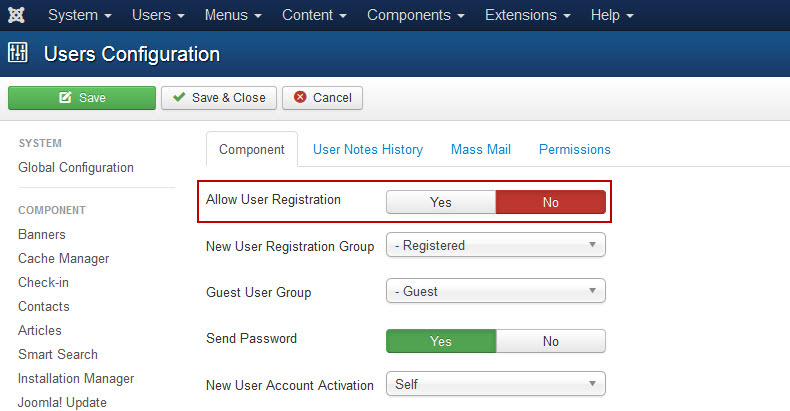
7. Disallow User Registration

If your webpage isn’t a community or social network, you should disallow user registration for security reasons by following these steps:

  • Login into the Administration area
  • Go to "Users/User Manager" and find the Options tab at the top of the page
  • You will see the option "Allow User Registration", and then set “No” for “Allow User Registration”
  • Click “Save” button

8. Use a secure web host

A good host will ensure your site safe. You need to check your hosting provider is using the latest version of PHP, Apache, MySql, phpMyAdmin, and cPanel. Contact to your server to update them.

9. Change the default permissions on your Joomla .php files to restrict editing or overwriting

You can set permissions on some important .php files to control what other people can do with your files, also to make it harder for hackers to overwrite your files:

  • Set the permission of /index.php to 444
  • Set the permission of /configuration.php to 444
  • Set the permission of /templates/*yourtemplate*/index.php to 444
  • Set the permission of the folder /templates/*yourtemplate*/ to 555

10. Change your .htaccess file

Adding .htaccess file to block out database and some common file exploits.

11. Disable the FTP Layer

For the majority of Joomla installations the FTP layer is not required, so we recommend that you disable this.

  • Login into the Joomla administration
  • Go to “Site/Global Configuration/Server”
  • In “FTP Settings”, select “No” for the “Enable FTP” option.
  • Click on the “Save & Close”

12. Do not allow users to upload scripts to your website

Allowing a user to upload files or scripts to your website is like opening another door for a malicious file to compromise your server. Although uploading files is a necessity for any web application with advanced functionality, you should take caution and think carefully. If you feel scripts necessary for your website to have a feature, ask some Joomla security experts for advice if it should allow people to upload them.

13. Review the joomla security checklist

Joomla Security Checklist will allow your site to be always protected. It is good to review and follow the hints and steps in checklist to keep your Joomla site secure

14. Run a vulnerability scan

Vulnerability scan analyzes and helps to search and eliminate security vulnerabilities of applications, installed on your computer, and in operating system settings.
Here is some vulnerability scans you should know

15. Setup a backup and recovery process

Take time to make a strong backup and recovery protocol for your live website. Having a full backup of your website is important to the recovery process.
You don't need to create a full backup often. Because Joomla stores all the data you create in a database, you only need to do it when you've installed or updated extensions.


About ASPHostPortal.com

We’re a company that works differently to most. Value is what we output and help our customers achieve, not how much money we put in the bank. It’s not because we are altruistic. It’s based on an even simpler principle. "Do good things, and good things will come to you".

Success for us is something that is continually experienced, not something that is reached. For us it is all about the experience – more than the journey. Life is a continual experience. We see the Internet as being an incredible amplifier to the experience of life for all of us. It can help humanity come together to explode in knowledge exploration and discussion. It is continual enlightenment of new ideas, experiences, and passions

 photo ahp banner aspnet-01_zps87l92lcl.png

Corporate Address (Location)

ASPHostPortal
170 W 56th Street, Suite 121
New York, NY 10019
United States

Sign in