How to Optimize Joomla 3 to Improve Site Performance
We know that speed is amongst the most important factors for the success of your website. By default, Joomla isn't slow but you can do a lot to optimize it and achieve great speed for your site. Here you will find the most essential actions you can take to speed up your Joomla 3 website. Here are few things you can easily do to speed-up Joomla:

Keep Joomla and its Extensions Updated
Having the latest version of Joomla is important for your site speed because in each version there are multiple code improvements. Even if the changes are small - new Joomla versions are generally performing better than previous ones. For more information on how to update Joomla to the latest version check out our Joomla Update Tutorial.
Keeping your Joomla extensions up-to-date is as important for the speed of your website as the Joomla itself. For more information on how to keep your Joomla 3 components, modules and plugins up-to-date, please refer to our tutorial on How to Upgrade Joomla.
Enable Joomla Caching
If cache is not enabled, every time your visitors load one of your pages, Joomla has to do few things - fetch the content from its database, load all the plugins, components and modules, you have installed, load your template file and combine all that into a single page. Needless to say this process takes time. This is where the internal Joomla caching system comes to help. When you enable the cache, the first time someone loads your page, the result from the above mentioned actions is stored. Then, all the following visitors will directly get the stored version of that page as if it was a simple, plain HTML file which is much, much lighter and loads faster. This is why caching is one of the most important things to enable in order to have a fast Joomla site.
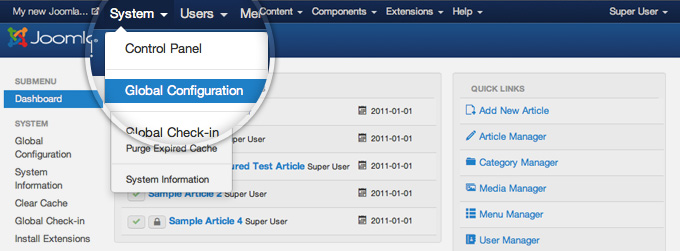
To enable the Joomla caching, first go to System -> Global Configuration.
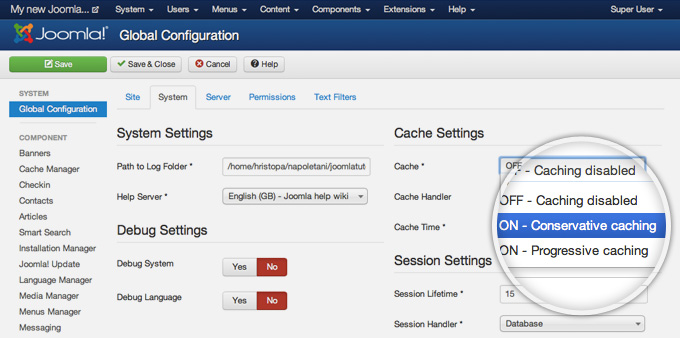
Next, you need to click on the System tab to get to the caching settings.
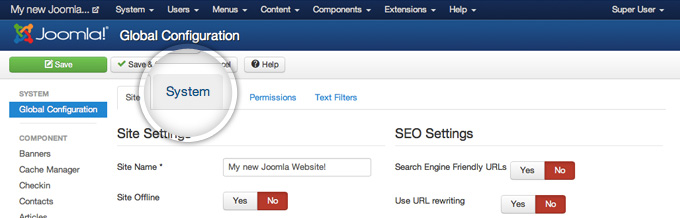
On the right part of this page you will find the Cache Settings. Find the Cache label and click on the drop-down next to it. From the list, please select the ON - Conservative caching option. The other available option - Progressive Caching works a bit different - it stores cached version of your site per each one of your visitors. It is useful in some particular cases and we don't recommend you to use it unless you're absolutely sure you need such caching enabled.
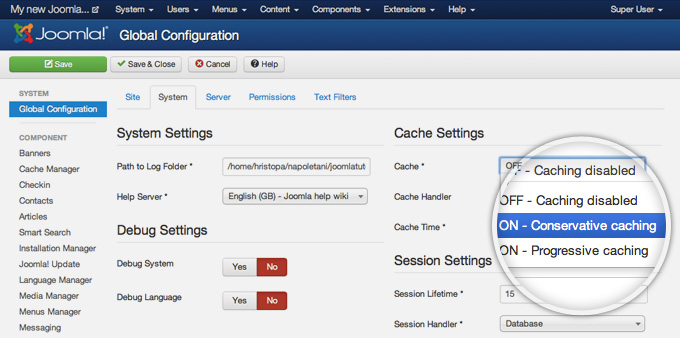
Once you set the caching to Conservative Caching, click on the green Save button at top of your page.
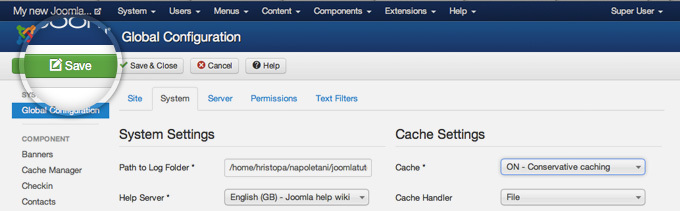
There is one final step that you need to make before the Joomla caching system actually starts working - to enable the System - Cache core Joomla 3 plugin. To do this go to Extensions -> Plugin Manager.
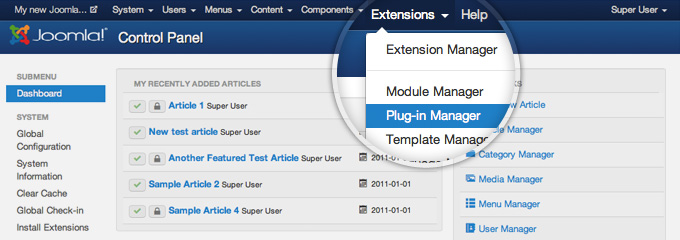
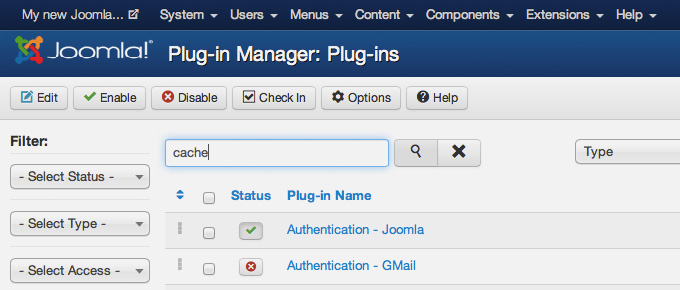
Here you will see a big list of all the plugins, currently installed in your Joomla application. The easiest way to locate the caching plugin is to use the search field. Just type in cache and press the magnifying glass button next to the search field.
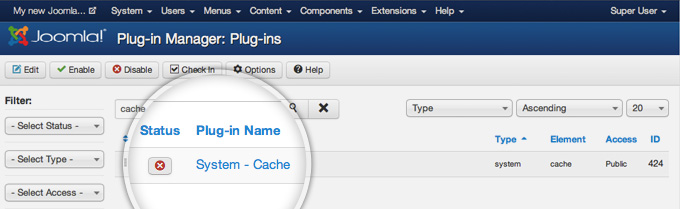
Once you do that, you will see the System - Cache plugin and a red cross button next to it indicating that the plugin is disabled. To change its status to enabled press on the red button.
Finally, the status button next to the caching plugin will turn green and you'll see a message, indicating that the plugin has been enabled successfully.
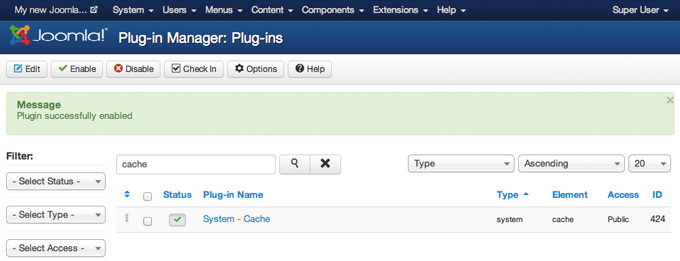
That's it! Your Joomla caching system is now enabled and functional!
Enable Joomla Compression
Another thing that will greatly improve the performance of your Joomla website is the compression. If you enable the internal Joomla compressions system, the page that your visitors will download will be compressed before it is transferred to them. When your webpage size is reduced through compression, it will load much faster. To enable the Joomla compression, first access your admin area and go to System -> Global Configuration.
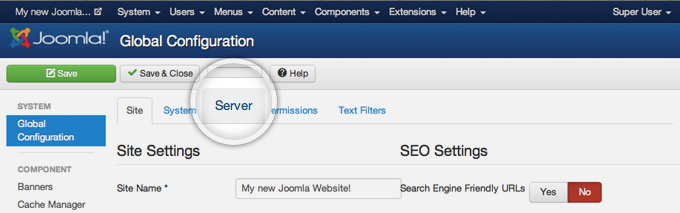
On this page you will see numerous settings. Click on the Server tab to view the server-related options you can change.
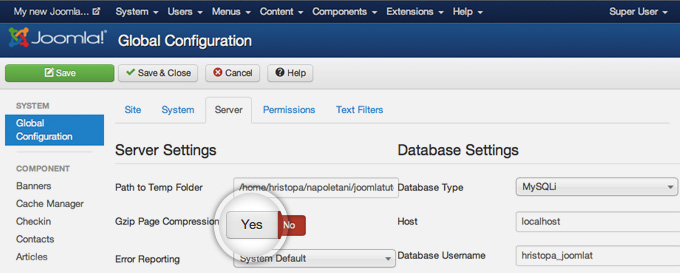
Here, locate the Gzip Page Compression label and press the Yes button next to it to enable the Gzip compression for Joomla.
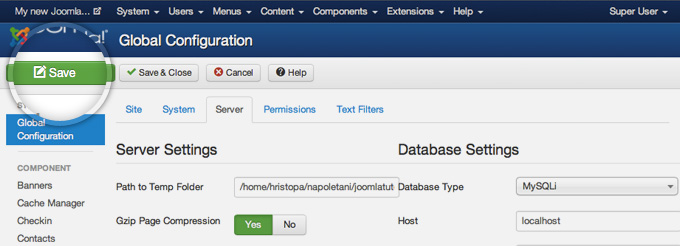
You will notice that the indicator will turn green showing that the compression is enabled. Finally, press the green Save button in the top left part of the page to commit your changes.
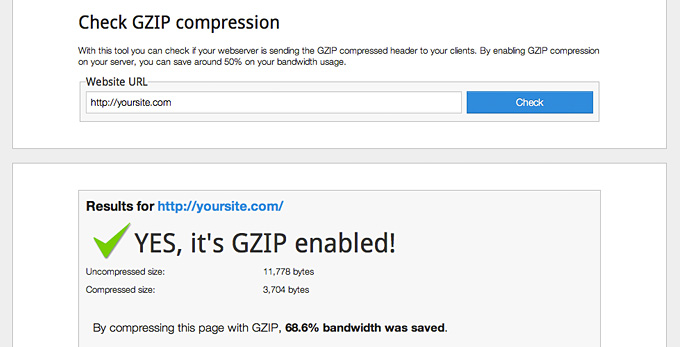
That's it, the compression of your Joomla 3 site is enabled. You can use one of the many free online tools for testing the Gzip compression such as http://checkgzipcompression.com for example. If everything is alright, you should see a notification that the compression is enabled successfully as well as some information about the change in size of your pages. As you can see from the screenshot below, we've reduced the size of our sample page three times simply by enabling the compression.
Warning In same cases enabling the Gzip compression may cause errors. The most probable reason for such errors is that Gzip is either not installed or not configured correctly on your server. Please contact the support team of your hosting provider for further assistance.
Add .htaccess Optimization Rules
Htaccess files handles the way your webservers process your site. There are few rules you can add at the end of the .htaccess file that will improve the performance of your Joomla site:
- ETag - tells browsers when one image has already been downloaded and can be fetched from the local browser cache instead from the server
- Expires headers - similar to ETag but allows you to set different expiration times for different file type
- AddOutputFilterByType DEFLATE - minifies the source code of your compiled HTML files by removing empty lines, breaks and spaces
########## Begin - ETag Optimization
## This rule will create an ETag for files based only on the modification
## timestamp and their size.
## Note: It may cause problems on your server and you may need to remove it FileETag MTime Size
# AddOutputFilterByType is now deprecated by Apache. Use mod_filter in the future.
AddOutputFilterByType DEFLATE text/plain text/html text/xml text/css application/xml application/xhtml+xml application/rss+xml application/javascript application/x-javascript
# Enable expiration control
ExpiresActive On
# Default expiration: 1 hour after request
ExpiresDefault "now plus 1 hour"
# CSS and JS expiration: 1 week after request
ExpiresByType text/css "now plus 1 week"
ExpiresByType application/javascript "now plus 1 week"
ExpiresByType application/x-javascript "now plus 1 week"
# Image files expiration: 1 month after request
ExpiresByType image/bmp "now plus 1 month"
ExpiresByType image/gif "now plus 1 month"
ExpiresByType image/jpeg "now plus 1 month"
ExpiresByType image/jp2 "now plus 1 month"
ExpiresByType image/pipeg "now plus 1 month"
ExpiresByType image/png "now plus 1 month"
ExpiresByType image/svg+xml "now plus 1 month"
ExpiresByType image/tiff "now plus 1 month"
ExpiresByType image/vnd.microsoft.icon "now plus 1 month"
ExpiresByType image/x-icon "now plus 1 month"
ExpiresByType image/ico "now plus 1 month"
ExpiresByType image/icon "now plus 1 month"
ExpiresByType text/ico "now plus 1 month"
ExpiresByType application/ico "now plus 1 month"
ExpiresByType image/vnd.wap.wbmp "now plus 1 month"
ExpiresByType application/vnd.wap.wbxml "now plus 1 month"
ExpiresByType application/smil "now plus 1 month"
# Audio files expiration: 1 month after request
ExpiresByType audio/basic "now plus 1 month"
ExpiresByType audio/mid "now plus 1 month"
ExpiresByType audio/midi "now plus 1 month"
ExpiresByType audio/mpeg "now plus 1 month"
ExpiresByType audio/x-aiff "now plus 1 month"
ExpiresByType audio/x-mpegurl "now plus 1 month"
ExpiresByType audio/x-pn-realaudio "now plus 1 month"
ExpiresByType audio/x-wav "now plus 1 month"
# Movie files expiration: 1 month after request
ExpiresByType application/x-shockwave-flash "now plus 1 month"
ExpiresByType x-world/x-vrml "now plus 1 month"
ExpiresByType video/x-msvideo "now plus 1 month"
ExpiresByType video/mpeg "now plus 1 month"
ExpiresByType video/mp4 "now plus 1 month"
ExpiresByType video/quicktime "now plus 1 month"
ExpiresByType video/x-la-asf "now plus 1 month"
ExpiresByType video/x-ms-asf "now plus 1 month"
Reduce Your Images Size
Images are big part of your website. In most of the cases images can be optimized. There are several tips that you should follow when you use images in your pages:
Never use large photos and then scale them using HTML - it takes the browser time to scale the images and they look worse than the original. Always optimize your images. Applications like Adobe Photoshop and online services like Smush it for example offer easy to use tools that will reduce the size of your images without lowering their quality greatly. Don't add too many images to a single page. If you have an article with many photos for example, try splitting it into pages.
Remove unused and unoptimized extensions
Each Joomla extension you add to your website requires system resources, database and disk space to operate. Having many extensions will increase the overa ll size of your website and make it slower. This is why, it is important to make sure that you have only extensions that you're actually using installed on your Joomla site. People often test different plugins, component and modules and forget to remove them once they finish working with them. It's great idea to do a clean-up of such extensions once in a while just to make sure there isn't any unnecessary content added to your site. Last but not least, when you choose the best extensions for the functionality you want to add to your Joomla site, always check for user reviews regarding the load it creates. Some components are poorly written and can affect the performance of your entire site.
Use Optimization Extensions
There are many extensions that try to improve the performance of your Joomla website. During the years of experience we've gathered while working with Joomla sites, there are few that we can recommend:
- JCH Optimize - Combines JavaScript & CSS, combines images into sprites, minifies and compresses JavaScript
- Jbetolo - All the functionality that JCH Optimize has plus CDN support
- JotCache- Improves the built-in Joomla caching system
- Cache Cleaner- easily clean the cache from the Joomla admin panel